Day 22: Part 1 Getting Started with Jenkins

Hello, I am Akshay Phadke I have 10 Yrs of Experience in various Technologies. Currently, I am learning a few DevOps tools. I am working on Microsoft Technologies and AWS
What is Jenkins?
Jenkins is an open-source continuous integration-continuous delivery and deployment (CI/CD) automation software DevOps tool written in the Java programming language. It is used to implement CI/CD workflows, called pipelines.
Jenkins is a tool that is used for automation, and it is an open-source server that allows all the developers to build, test and deploy software. It works or runs on Java as it is written in Java. By using Jenkins we can make a continuous integration of projects(jobs) or end-to-endpoint automation.
Jenkins achieves Continuous Integration with the help of plugins. Plugins allow the integration of Various DevOps stages. If you want to integrate a particular tool, you need to install the plugins for that tool. For example Git, Maven 2 project, Amazon EC2, HTML publisher etc
Tasks
1)What you understood in Jenkin, write a small article in your own words
Jenkins is a self-contained, open-source automation server that can be used to automate all sorts of tasks related to building, testing, and delivering or deploying software.
Jenkins can be installed through native system packages, Docker, or even run standalone by any machine with a Java Runtime Environment (JRE) installed.
Note: By now Jenkins should be installed on your machine(as it was a part of previous tasks, if not follow Installation Guide)
First Let's install Jenkins on our EC2 instance as
Step 1: Log into the EC2 instance. After logging in to the EC2 instance update the server as. First, we will update the system

Step 2: Install Java
sudo apt install openjdk-11-jre

step 3: Copy the curl command to install Jenkins
curl -fsSL https://pkg.jenkins.io/debian/jenkins.io.key | sudo tee \   /usr/share/keyrings/jenkins-keyring.asc > /dev/null
echo deb [signed-by=/usr/share/keyrings/jenkins-keyring.asc] \   https://pkg.jenkins.io/debian binary/ | sudo tee \   /etc/apt/sources.list.d/jenkins.list > /dev/null

And then we will update the server using the get update command
step 4 : Install Jenkins using command

step 5 : Let's start Jenkins , before that open port 8080 on AWS in security groups as Jenkins listen to port 8080
First we will enable Jenkins , then we will start jenkins and then we will see the status of jenkins

sudo systemctl enable jenkins
sudo systemctl start jenkins
sudo systemctl status jenkins
After this copy paste the public address URL you will see Jenkins home screen as

Now to login into Jenkins we need admin password to get that copy paste the path and execute in you server as

Once you login inyo jenkins click in Install suggested plugins as will install plugins

After installation, it will ask to add an admin user as

After setting up we will redirected to Jenkins homescreen

Now lets create the pipeline for Hello World in Jenkins
Click on the "New Item" button on the sidebar

Give your project a name, select "Freestyle project" as the job type and click on "OK" button

In the project configuration page, you can specify the source code management, build triggers, build environment, and build steps
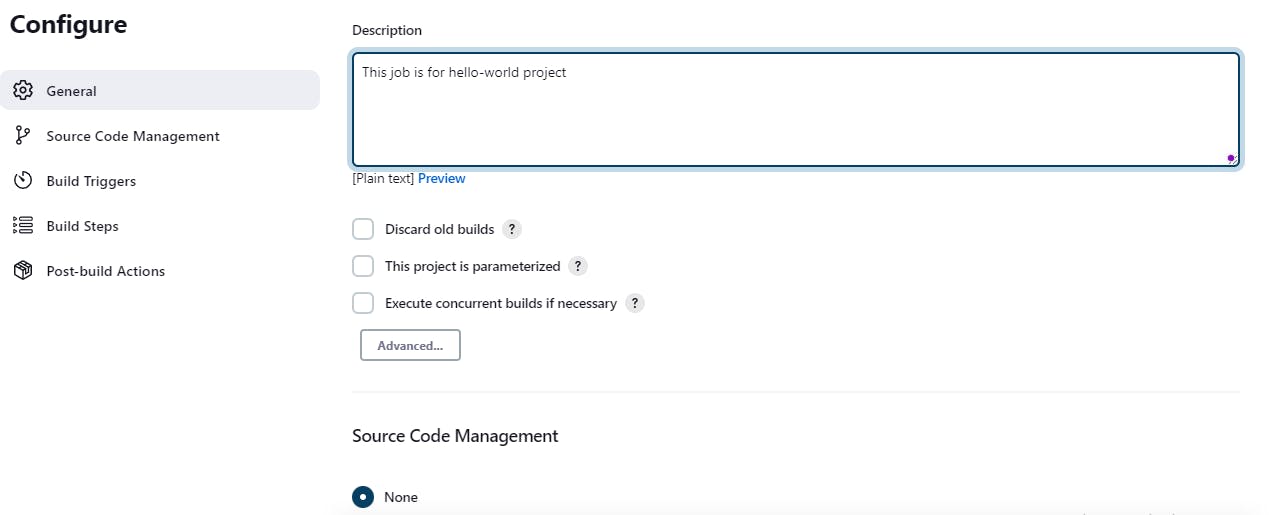
In the build section we have an option ‘Execute Shell’ by which we can write some commands or code:
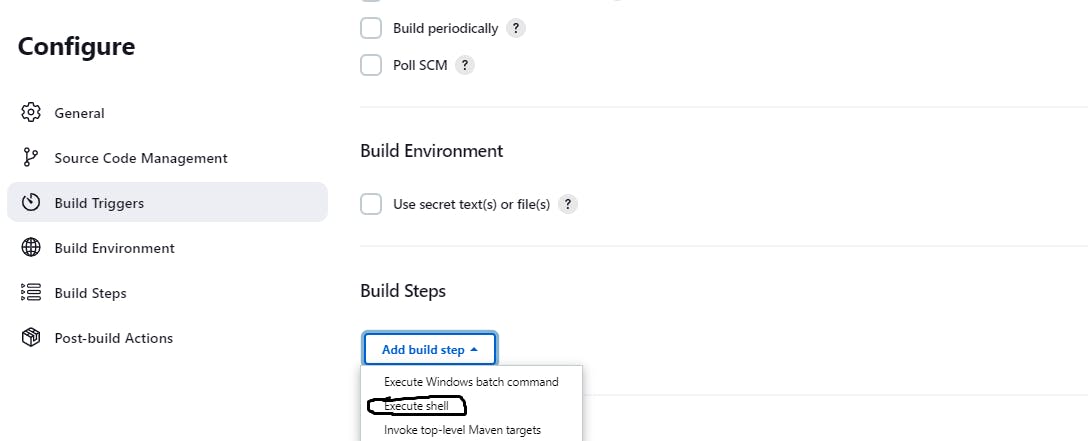
In the build step, you can specify the task you want to perform, such as executing shell commands, running scripts, or building with a specific tool
In the command field, enter the command to print "Hello World", such as echo "Hello World!!"

Once you've configured your project, click on the "Save" button to create the project.
You can now run the project by clicking on the "Build Now" button
Check the console output for "Hello World" message.


